
- 1
Sign in with the account that owns the profile
Open a browser and sign in to the Google account you used to claim your business. Only an owner of the profile can invite other people, so if a colleague set it up, they need to do these steps.
- 2
Open your Business Profile
Search your business name on Google, or go to business.google.com. If you manage more than one location, choose the location you want to share.
- 3
Go to Business Profile settings → People and access
In the profile menu, select the three-dot menu or Business Profile settings, then choose People and access. This is the screen that lists everyone who can work on your listing.
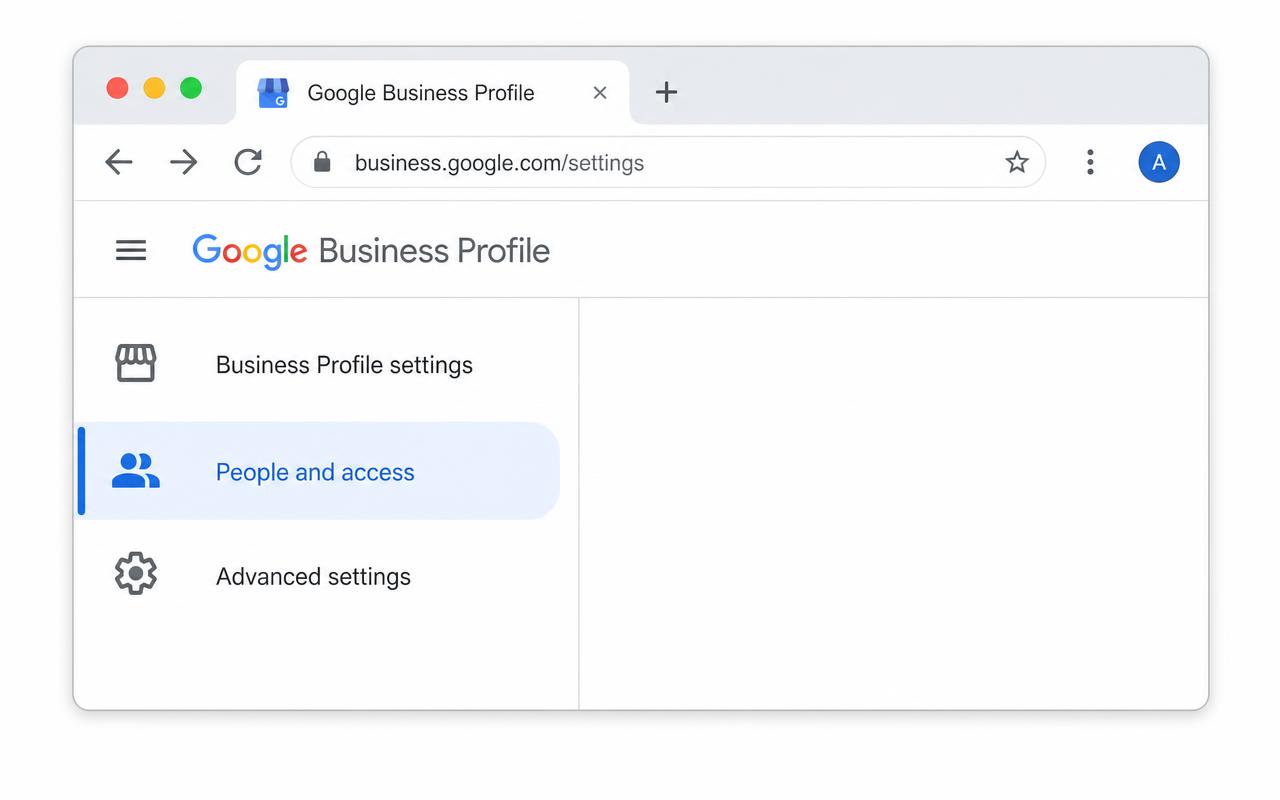
Illustration of the screen you should see — Google’s layout may look slightly different. - 4
Click Add
Select Add (the person-with-a-plus icon) in the top corner of the People and access panel.
- 5
Enter info@luxmarketingcompany.com
Type the address exactly as written:
info@luxmarketingcompany.com - 6
Choose Manager as the access level
Under Access, pick Manager. A manager can update your hours, photos, posts and replies, but cannot remove the profile or remove you as owner. Then click Invite — Google emails the invitation to that address.
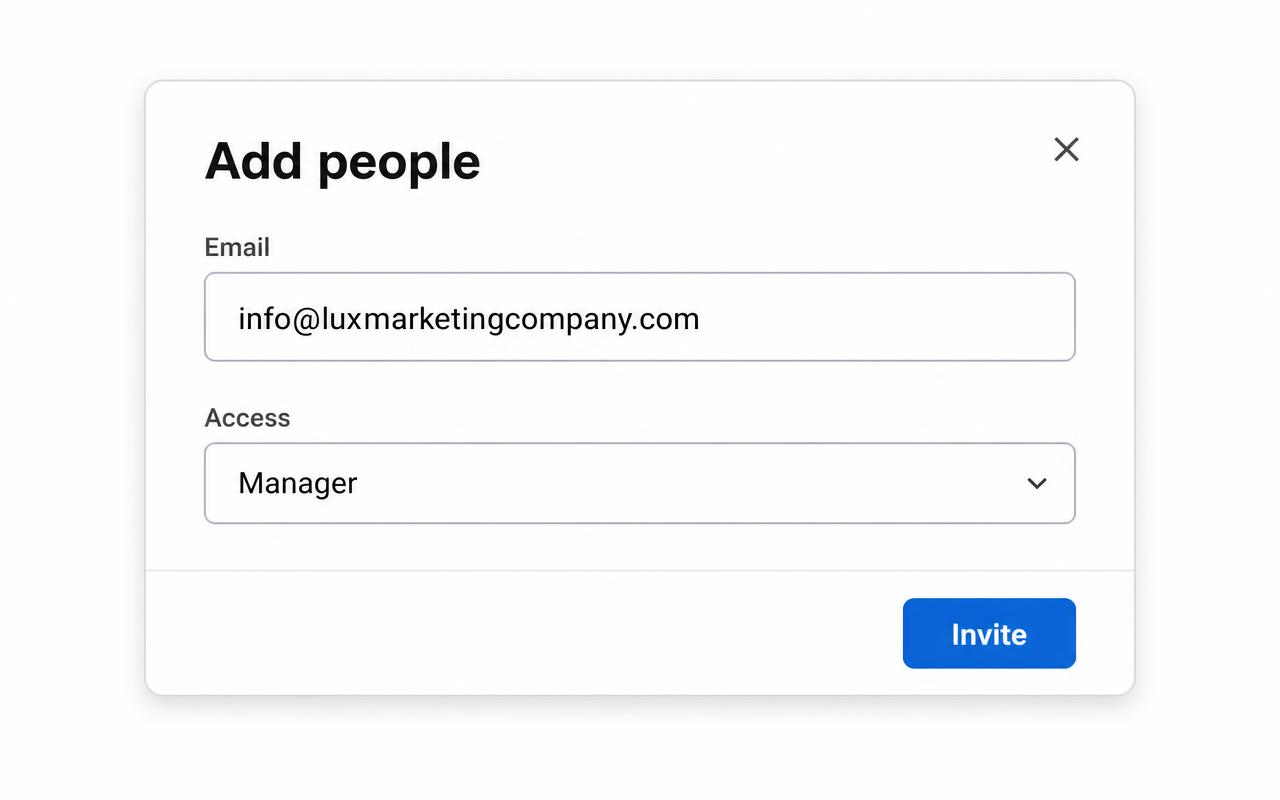
Illustration of the screen you should see — Google’s layout may look slightly different.
Owner vs. manager, in plain terms
- Primary owner
- Full control, including transferring ownership and removing the profile. That stays with you.
- Owner
- Can do almost everything, including adding and removing other people.
- Manager (what we recommend for us)
- Can edit business info, photos, posts, reviews and messages — but cannot remove the profile or change who owns it.
Based on Google’s own help article, Add and remove profile owners and managers.